A complete remote
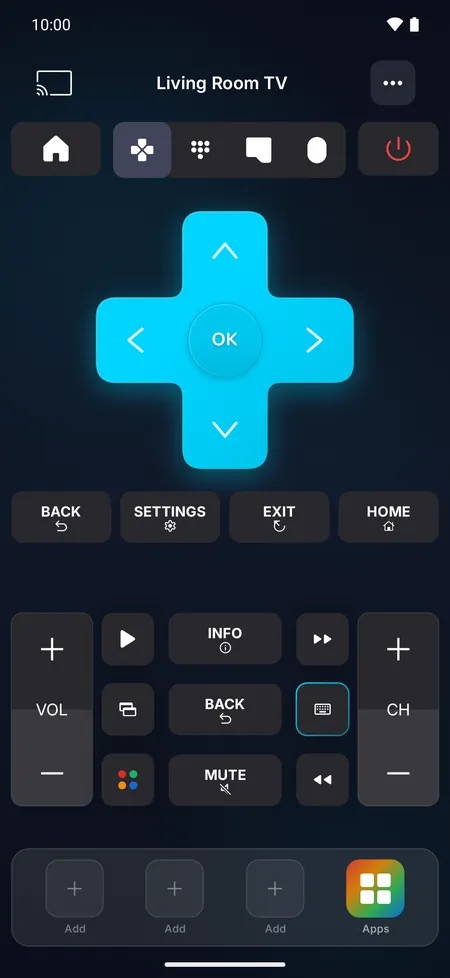
Direction pad, OK, back, home, volume, channels, mute, playback, number pad and color keys, depending on your TV.
 Android app · No ads
Universal TV Remote Control finds the TVs on your Wi-Fi in seconds and gives you a fast, beautiful remote with a keyboard, touchpad, voice search, app shortcuts and casting. No extra hardware, no complicated setup.

How it works
No extra hardware: your phone talks to your TV over your home Wi-Fi, or with its infrared emitter if it has one.
Connect your phone to the Wi-Fi network your TV uses. That's all the app needs.
The app finds the smart TVs on your network by itself. Tap yours, or add it by its IP address.
Some TVs ask you to allow the connection or show a code the first time. Follow the message on the screen and you're in control.
Everything in one remote
Each TV gets the controls it really supports, so every button you see works.
Direction pad, OK, back, home, volume, channels, mute, playback, number pad and color keys, depending on your TV.
Type searches, passwords and logins on your phone instead of hunting for letters with the arrows.
Swipe to move through menus and tap to select. On TVs with an on-screen pointer, move a real cursor.
Speak, and your words are typed on the TV (on supported TVs).
Open your streaming apps directly on the TV and pin your top 3 to the remote.
On Android phones with an infrared (IR) emitter, control almost any TV, smart or not, even without Wi-Fi.
Show your phone's photos and videos on the big screen (on supported TVs).
Switch compatible TVs on over Wi-Fi from standby, or with Wake-on-LAN.
Save every TV, give each one a name and a room, and switch between them in one tap.
Choose the look of your remote from 9 dark and light themes.
Power, volume and the direction pad right on your home screen, plus Quick Settings tiles to open the remote or switch the TV on and off.
Phones, foldables and tablets, in 24 languages.
Inside the app
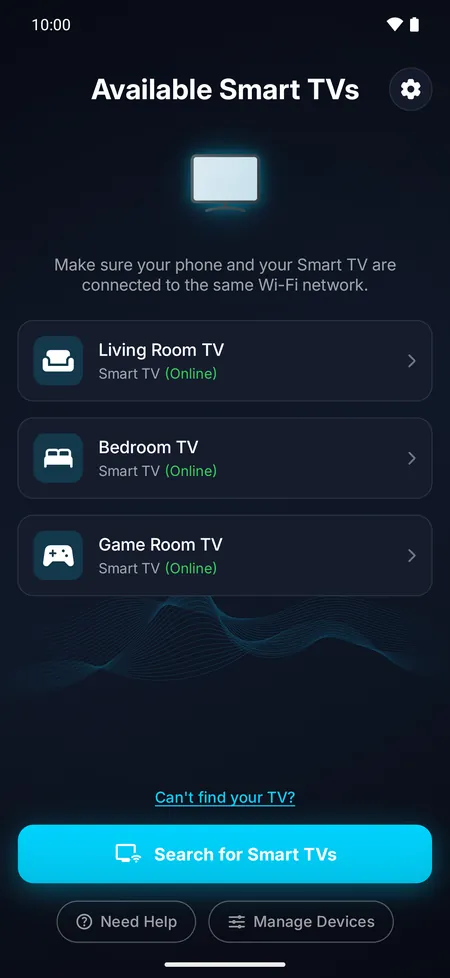
Open the app and the smart TVs on your Wi-Fi appear by themselves, with their status. Tap one to connect.
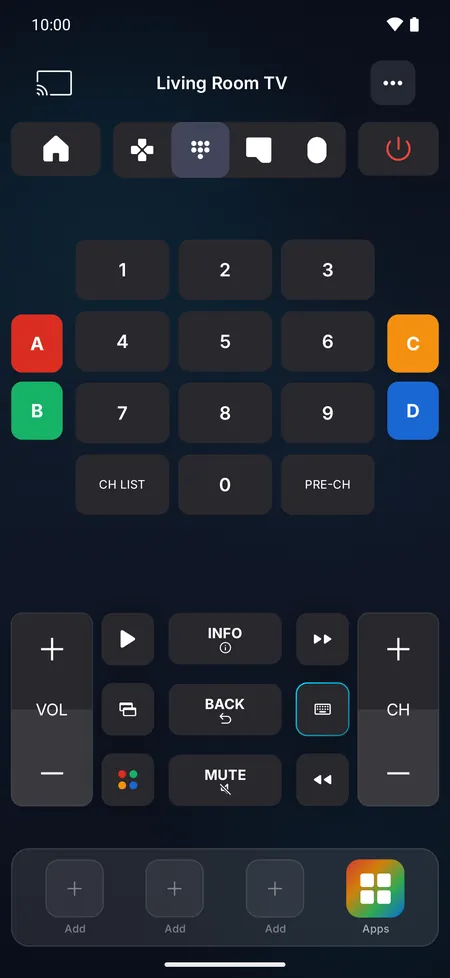
A remote laid out for your TV: only the keys it supports, with haptic feedback on every press.
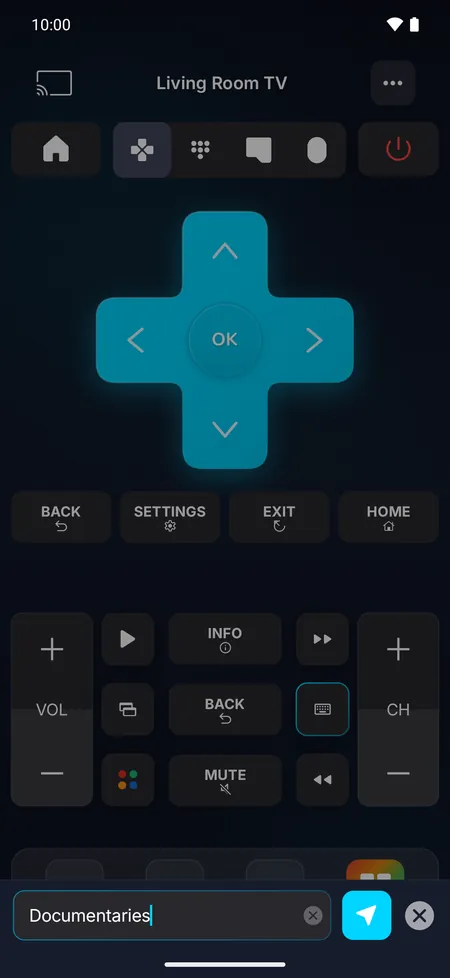
Search for a show or enter a password with your phone's keyboard. Depending on the TV, letters appear as you type or are sent in one go.
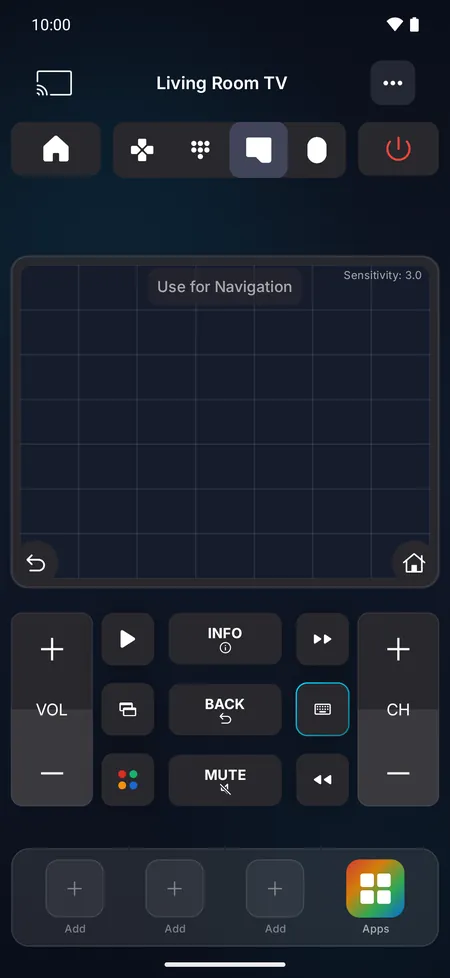
Glide through menus with the touchpad: swipe to move, tap to select. On TVs that show a pointer, drag to move a real cursor and scroll with two fingers.
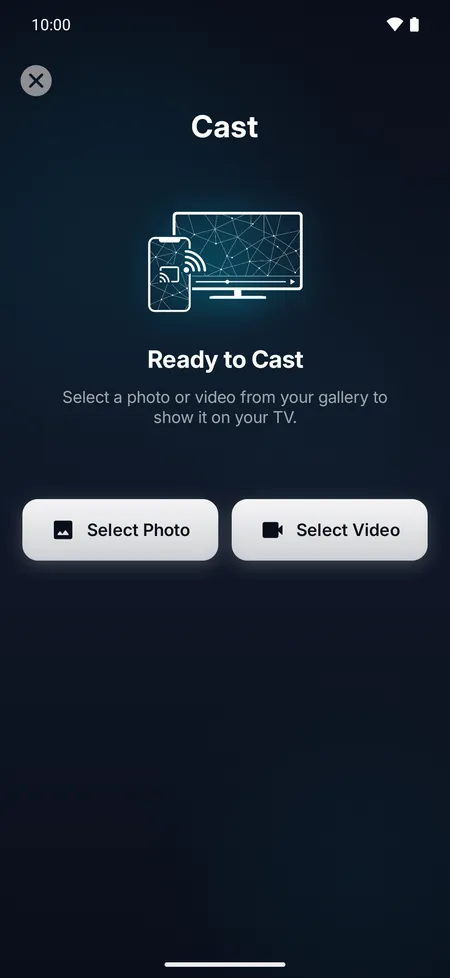
Pick a photo or video from your gallery and show it on the TV. Keep the app open while a video plays.
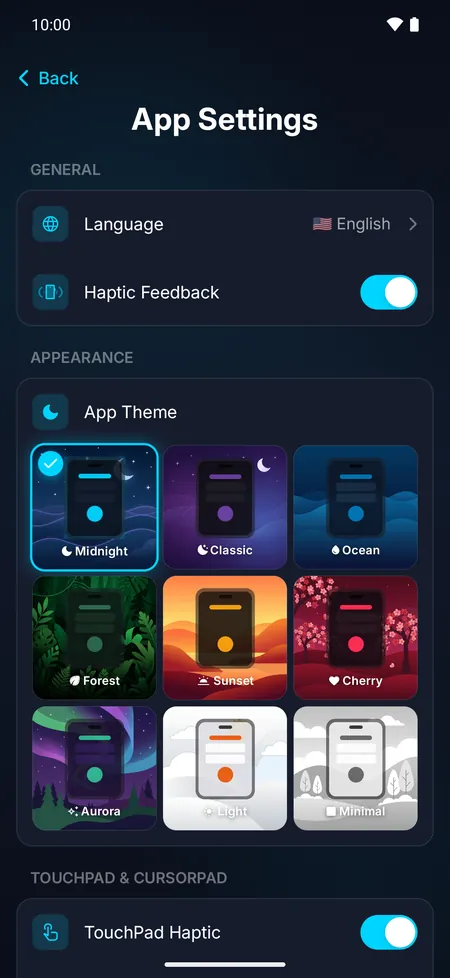
Nine themes, from the deep navy Midnight to a bright Light theme. Midnight and Light are free; the others come with Pro.
Compatibility
If your TV or streaming device can be controlled over Wi-Fi, the app can most likely control it. Pick yours to see exactly how to connect it.
First time: Select Allow on the TV
First time: Select Accept on the TV
First time: Type the 4-digit PIN
First time: Type the 6-character code
First time: Turn on ADB debugging, then type the PIN
First time: Nothing to do
First time: Type the 4-digit PIN
First time: Type the 4-digit PIN
Another brand? Many TVs run one of these platforms, such as Android TV, Google TV, Roku, Fire TV or VIDAA. If your TV has apps and is on your Wi-Fi, give it a try.
TVs without a network connection (no apps, no Wi-Fi, no network cable) can't be controlled over Wi-Fi, but Android phones with an infrared (IR) emitter can control them with infrared.
Brand names are used only to describe compatibility. Universal TV Remote Control is not affiliated with any TV manufacturer.
If your TV is on your Wi-Fi, your phone can take over in a minute. And an Android phone with an infrared (IR) emitter can control almost any TV.
What you can do without a remotePrivacy
The app shows no ads, and we don't sell your data.
Open the app and use it. There's nothing to sign up for.
Button presses, text and the photos you cast go straight from your phone to your TV over your home network. We never receive them.
The keys your TVs give the app are stored encrypted on your phone.
Pricing
Try the remote for free. Upgrade to Pro to unlock every feature and every theme.
To try the remote
Every feature, no limits
Prices are shown in the app in your local currency before you buy. Payment is charged to your Google Play account. Subscriptions renew automatically unless cancelled at least 24 hours before the end of the current period. Manage or cancel them anytime in Google Play › Payments & subscriptions.
FAQ
Yes, it's free to download, and you can try the remote's buttons for free with some limits. Pro unlocks every feature: the keyboard, voice search, the touchpad and cursor, the full app list, casting, Wake-on-LAN and premium themes. Pro is available as a weekly subscription (with a free trial for new subscribers), a yearly subscription or a one-time lifetime purchase.
Most smart TVs and streaming devices that can be controlled over Wi-Fi, including Samsung, LG, Sony, Android TV and Google TV, Fire TV, Roku, Vizio and Hisense VIDAA. If your Android phone has an infrared (IR) emitter, the app can also control almost any other TV with infrared, smart or not. See how to connect your TV.
No. Over Wi-Fi, the app controls smart TVs and streaming devices without infrared, and you don't have to point your phone at the TV. If your Android phone has an infrared (IR) emitter, the app can also use it to control almost any TV, smart or not, even without Wi-Fi. Does my phone have one?
Yes, if your Android phone has an infrared (IR) emitter: the app can control almost any TV with infrared, even without Wi-Fi. Without an emitter, the app works over Wi-Fi, so the TV needs a network connection, or a streaming stick or box plugged into it.
For your security, many TVs ask you to approve a new remote the first time it connects. Select Allow on the TV or type the code it shows: you only need to do it once per TV. No remote? Select Allow with a USB keyboard.
Yes, as long as your TV is on and connected to the same Wi-Fi as your phone. If your TV asks you to allow the connection the first time, plug a USB keyboard into the TV (most smart TVs accept one) and select Allow with its arrow keys and Enter. If your Android phone has an infrared (IR) emitter, you can also control the TV with infrared, even if it isn't a smart TV. What really works without a remote.
Make sure the TV is on and fully started, that your phone and TV use the same Wi-Fi network (not a guest network, and the same 2.4 GHz or 5 GHz network) and that no VPN is on on your phone. Step-by-step fixes.
Many TVs can be turned on while they're in standby, when a network standby option is on in the TV's settings (for example Quick Start, Fast TV start or Power On with Mobile). A TV that is unplugged or fully off can't be turned on from the app. Streaming sticks and boxes can switch the TV on only when HDMI-CEC is on. More ways to turn on a TV without the remote.
Yes. The keyboard sends what you type on your phone to the TV, on every supported type of TV except Hisense VIDAA TVs. How to type on your TV.
Voice search works with LG, Roku, Fire TV, Android TV and Google TV devices: speak, and your words are typed on the TV. It uses your phone's speech recognition, which may need an internet connection.
Yes, on Samsung, LG and Sony TVs and on Roku devices: pick a photo or video in the app and it appears on the big screen. Keep the app open while a video plays. Roku devices need the free Media Assistant app from the TV's channel store.
Yes. The app saves every TV it connects to. Rename them, set their room and switch from one to another in one tap.
There are no ads and no account. What you send to your TV stays on your home network. We use a few service providers for analytics, crash reports, subscriptions and support, as explained in the Privacy Policy.
Open Google Play › Payments & subscriptions › Subscriptions and cancel at least 24 hours before the end of the current period. Pro stays active until the end of the period you've paid for. The lifetime purchase is a one-time payment, with nothing to cancel.
No. Universal TV Remote Control is an independent app made by Invikta Technology. It is not affiliated with, endorsed by or sponsored by any TV manufacturer.
Open Help & Support in the app for step-by-step troubleshooting and live chat, or email help@reportking.app.
Guides
Step-by-step answers to the questions people ask most, for every type of TV.

It's already in your pocket. Download Universal TV Remote Control and take control in seconds.